How laptop compartments protect your computer
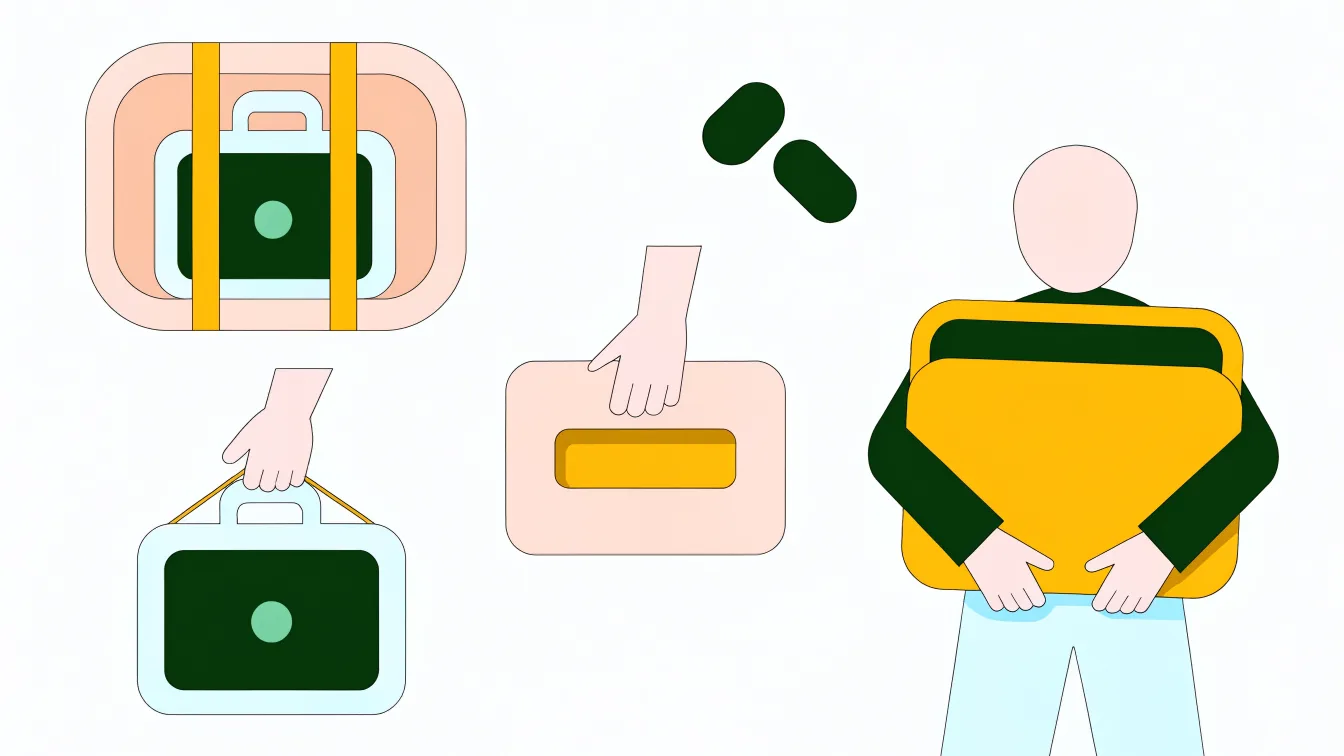
A laptop compartment separates your computer from other contents and can add cushioning, retention, and clearance above the bag's base. Construction guidance Evaluate those features individually. A dedicated pocket needs to suit your device and packing habits, not merely carry a laptop label.
What a laptop compartment actually adds
Think about separate jobs rather than a single protection score. Fit, padding, placement, and access each deserve attention when comparing a bag.
The following table translates published construction features into inspection questions. It is a comparison checklist, not a drop-test result.
| Feature | What to identify | Practical inspection |
|---|---|---|
| Padded walls | Cushioning around the computer | Trace the base, sides, and upper edge |
| Soft lining | Surface facing the device | Inspect the pocket for exposed hardware and loose objects |
| Raised sleeve floor | Clearance above the outer bag base | Locate where the computer actually stops |
| Retaining closure | The flap, strap, or zipper securing the device | Rehearse closing it with the computer inside |
| Separate access | An opening serving the computer area | Determine which other sections must open first |
The padding and lining checks reflect published bag-selection guidance. Raised-floor and separate-entry examples appear in a maker's suspended design.
Start with the device you carry most often. Include its protective shell, if you use one, when assessing the proposed fit.
Use the laptop bag guide to compare carrying formats. For measurements, follow the device measurement guide.
Suspended sleeves and false bottoms
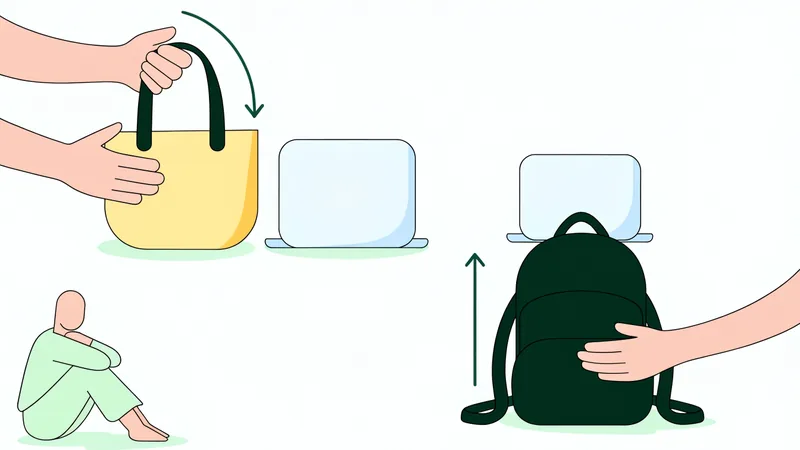
A suspended sleeve holds the computer area above the bag's lower surface. One maker explicitly describes its pocket as suspended above a padded bottom.
When comparing descriptions, establish what the seller means by a false bottom. Look for the actual relationship between the sleeve floor and exterior base.
Do not infer that relationship from an interior photograph showing only the pocket opening. Request a side view or cutaway if the construction remains unclear.
As an inspection exercise, place the intended computer in the sleeve gently. Locate its lower edge through the fabric without pressing or forcing the device.
Then examine the rest of the bag in its normal packed shape. Confirm whether the maker describes the clearance for that configuration.
Treat clearance and cushioning as separate details. The cited suspended design lists both features; one word should not stand in for the other.
For impact claims, look for a named test and its conditions. Do not translate a visible gap into a guaranteed survival height yourself.
The backpack anatomy guide helps identify the base, back panel, internal sleeves, and surrounding structure during this comparison.
Padding and lining protect in different ways

A removable sleeve provides a useful construction example. Its specification lists one-quarter-inch foam padding between a polyester exterior and brushed tricot lining.
That describes the materials and their arrangement. It does not provide a universal formula for how much foam every computer needs.
Use the specification to distinguish cushioning from the surface touching your device. Record both when comparing another bag or sleeve.
Also inspect coverage. Follow the protected area around the lower corners, sides, and opening instead of judging only the broad front panel.
Keep hard accessories away from the computer's surface. A computer maker warns against contents that press directly against the laptop, including an overpacked carrying case.
For your layout, give the charger its own position. Rehearse packing it without placing the plug or power brick against the computer.
If you add a separate sleeve, evaluate the combined arrangement. Close the outer bag with the sleeved device inside, and stop if insertion requires force.
The bag padding explainer covers cushioning terminology beyond computer storage.
Back-panel versus front placement
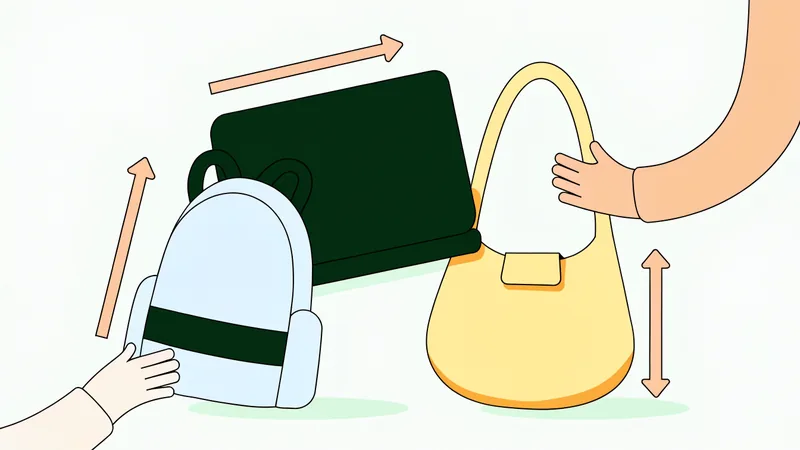
Compare placement by tracing how the computer enters and where other belongings sit. Decide which opening you want to use during your actual routine.
For a pocket against the back panel, examine the divider facing the main compartment. Plan where books, charging equipment, and other firm objects will go.
For a front-positioned pocket, examine the exterior-facing wall and its surrounding storage. Rehearse opening the computer area while the other pockets are filled.
These are inspection priorities rather than a ranking of front and rear designs. Keep the computer maker's warning about direct pressure from packed contents in mind.
Next, decide whether separate access matters. A published suspended pocket offers two-way entry, showing that position and access are different design choices.
Practice the complete task: support the bag, open the correct section, remove the device, replace it, and close the opening.
Consider your destination as well as your journey. Decide where the bag will stand while you remove the computer at a desk.
For the surrounding pockets, use the organization layout guide.
What it means when you shop
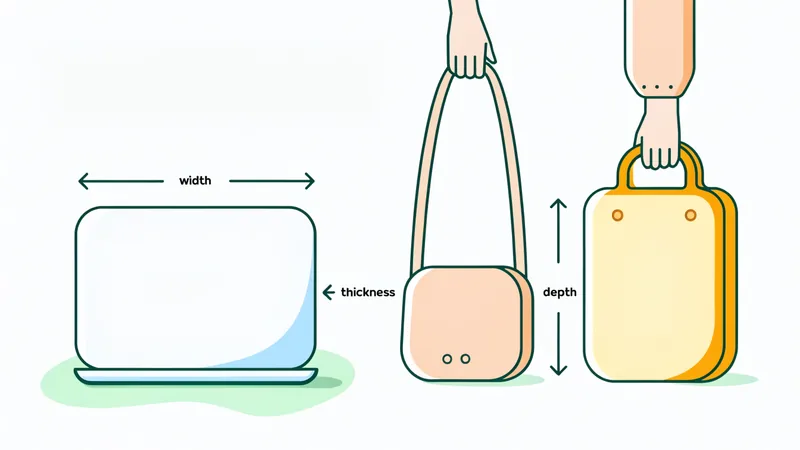
Compare the laptop compartment against the full device measurements. Record width, height, and thickness with any shell you intend to keep attached.
A published sleeve example lists maximum interior dimensions of 13 x 9.25 x 1 inches for one size. Those are interior limits, not the bag's exterior measurements.
Keep the measurement categories separate. A separate fit table lists interior and exterior dimensions in different columns.
When fitting the computer, include the opening in your assessment. Rehearse insertion and removal without forcing the corners through a narrow entry.
Avoid three shortcuts: assuming a screen-size label proves fit, assuming padding proves base clearance, or assuming a soft lining establishes impact performance.
Instead, make one note for each requirement: fit, cushioning, clearance, retention, and access. Leave unsupported performance assumptions out of your comparison.
Finally, follow your computer's transport instructions. One manufacturer advises disconnecting accessories, closing the screen, powering down, and placing the device gently into its case.
Good packing remains part of the setup after you choose the bag.

FAQ
Does a padded pocket mean my computer is drop-proof?
Do not treat the word padded as a drop rating. A published sleeve specification describes its foam and lining, while a separate bag description explains its raised floor. Compare those details individually, and look for a named test before relying on a specific impact-performance claim.
What does a suspended sleeve mean?
It means the computer storage area is held above the bag's bottom in the cited design. The maker describes suspension above a padded base. For another bag, inspect its own construction. Establish where the computer stops rather than assuming every dedicated sleeve has equivalent clearance.
Can I put a separate sleeve inside my backpack?
Yes, where the complete assembly fits. A published removable sleeve uses clips for attachment to compatible bags. Compare its exterior dimensions with the available interior, then rehearse closing the packed backpack. Follow the makers' compatibility instructions for attachment systems rather than improvising a suspension arrangement.
Why does my computer fit the bag but not its opening?
Treat the entry and interior as separate checks. A maker's sizing guide distinguishes interior from exterior measurements, so the outside size alone is insufficient. Compare the intended insertion route with your device and any shell. Avoid forcing the computer through an opening that presses against its corners.